
Fit Whole Image or Fill the Square? A Measured Emoji Crop Test
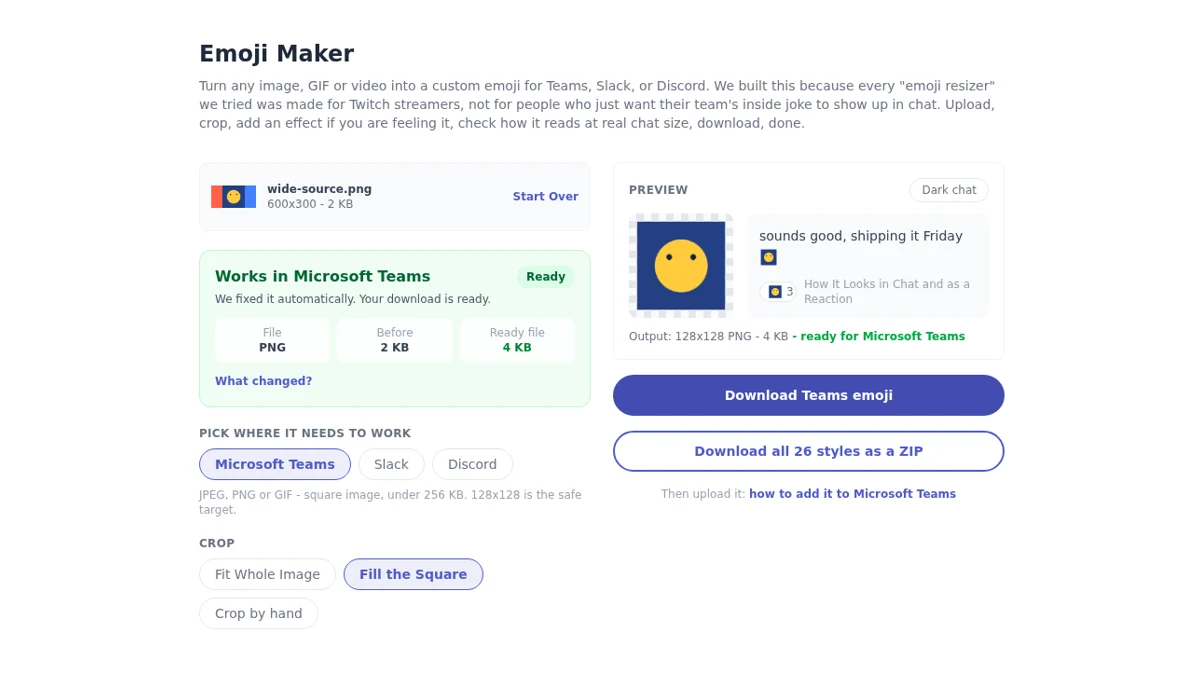
Fit Whole Image keeps the whole picture and leaves space around it. Fill the Square takes a centered square from the picture and makes that area larger. Neither choice stretches a wide image into a square. We tested both with the same source so you can see what changes before cropping something important.

Miles Crawford
The short answer
Use Fit Whole Image when the edges carry meaning: two people, a complete object or a wide mark. Use Fill the Square when the central subject is the reaction and the outer scene is expendable. If the subject is off-center, use Crop by hand instead of assuming a centered crop will find it.
These are composition choices, not quality levels. Fill can make a face easier to see, but it cannot recover detail that was absent from the source. Fit can preserve everything while making the useful part too small to read. Check the maker's message and reaction previews, not only the large image.
One source, two exports
We made a 600 by 300 pixel RGB PNG with a yellow face in the middle and colored blocks at the left and right edges. The blocks make lost content obvious. This is a synthetic test image, not a customer file or an example of a platform upload.

In the Teamsmoji maker, we selected Microsoft Teams, Original, PNG (Transparent), and the default 8% padding. We left color tools, captions, rotation and flips unchanged. We exported once with Fit Whole Image, then once with Fill the Square. Both downloads were 128 by 128 pixels.
Fit keeps the edge blocks

Fit retained both colored edge blocks. The nontransparent content occupied 108 pixels across and 54 pixels down. Its bounding box began at x=10, y=37 and ended before x=118, y=91. That leaves about 37 transparent rows above and below the wide picture. The yellow face is smaller because the entire wide composition shares the square.
Choose this if cutting either side would change the meaning. If the face is too small, the next decision is what to remove from the source, not how often to recompress the same composition.
Fill removes the outer scene

Fill took the centered 300 by 300 portion of our 600 by 300 source. The coral and blue blocks disappeared. The central face became larger without becoming wider or flatter. Nontransparent content occupied 108 by 108 pixels, beginning at x=10, y=10 and ending before x=118, y=118.
The remaining border is expected: Fill the Square still honors the padding setting. The control does not mean edge-to-edge artwork at every padding value. Reduce padding only if the subject has enough breathing room and still looks good in the small preview.
Repeat the test on your image
- Upload the original file, then keep the platform and effect settings the same for both versions.
- Export Fit Whole Image. Check whether the subject is still understandable in the reaction preview.
- Export Fill the Square. Check the top, bottom and both sides for anything that the centered crop removed.
- If neither works, choose Crop by hand and frame the actual subject, or use a simpler source.
- Keep the original. A cropped export cannot restore the parts you cut away.
What we measured, and what we did not
Tested October 28, 2026 on the live Teamsmoji maker in headless Brave 1.98.60 (Chromium 156, desktop 1280 pixels wide) and upstream WebKit 18 (mobile layout, 390 pixels wide), running on Linux. We opened the actual downloaded PNG bytes, checked their dimensions and measured nontransparent bounds. Both engines produced the same content bounds for each setting.
Encoded file sizes differed: Brave's Fit download was 3,064 bytes and Fill was 4,234 bytes; WebKit's were 1,905 and 3,178 bytes. These are this test's results, not promised output sizes. Fill was not smaller here, despite discarding source content. All four files remained 128x128.
We did not upload these files into Slack, Teams or Discord, test Safari.app or iOS hardware, or measure subjective recognition with users. The maker's ready label describes its export check; it does not prove permission to add an emoji to your workspace. This comparison tests two maker controls, not the quality of every possible input.
Source for the controls and live reproduction: Teamsmoji Emoji Maker. The screenshot, source and exports above come from our own test. For platform requirements, use the separately sourced emoji size-limit guide.