
Make a Custom Emoji From Any Image, GIF, or Video
The hard part is not shrinking the file. It is choosing one clear moment that still reads when the finished emoji is barely taller than a line of text.

Miles Crawford
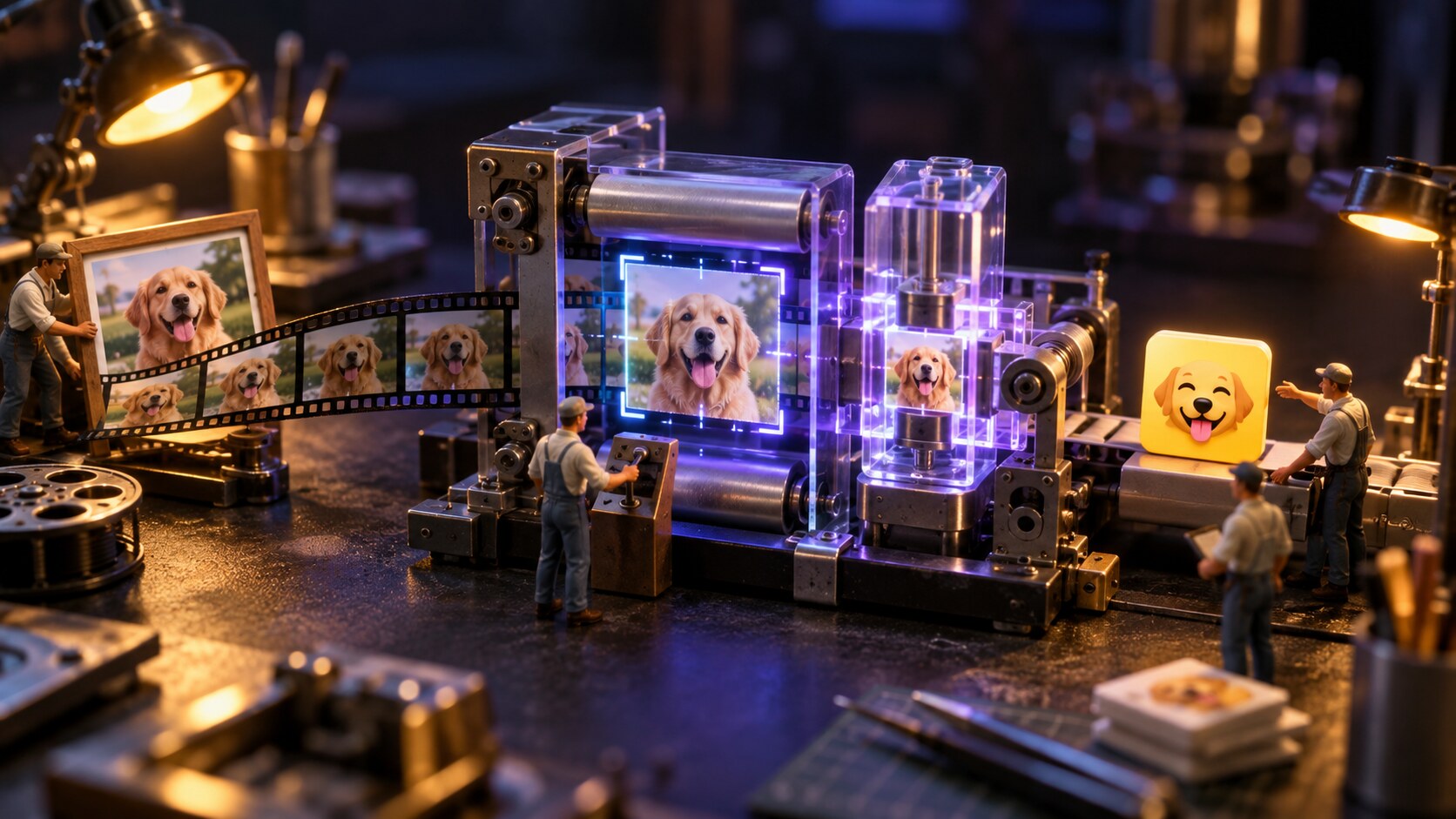
Pick the Frame Before You Pick the Effect
A reaction emoji needs one subject, one expression, and almost no background. For a photo, crop around the face or object instead of preserving the whole scene. For video, scrub for the half-second where the expression peaks. If the joke needs a paragraph of context, it wants to be a GIF in the channel, not an emoji in the picker.
Use the Maker's Real Chat-Size Preview
Open the Teamsmoji Emoji Maker, then drop in a PNG, JPG, WebP, GIF, MP4, or WebM. You can also paste a screenshot. The tool shows the result inline in a message and inside a reaction chip, where thin outlines, tiny text, and busy backgrounds reveal themselves as mush.
Nothing is uploaded to Teamsmoji. Cropping, effects, GIF encoding, and video conversion happen in your browser. That makes a private team photo a reasonable source file, but you should still get the subject's okay before turning their face into the department's new panic button.
Crop Hard, Then Let the Tool Fix the File
Drag the square crop around the part that carries the reaction. A little padding helps a face breathe; too much turns it into a postage stamp. Choose Teams, Slack, or Discord and the maker resizes and compresses the export for that platform. The Works panel shows the source file, the ready file, and whether anything had to be fixed.
If the result still feels vague, remove detail before adding decoration. A tighter crop usually does more than a rainbow, spin, or caption. Effects work best when the source already reads cleanly.
Keep Motion Short Enough to Become a Reaction
For an animated source, isolate one repeatable gesture: a nod, blink, tiny dance, or perfectly timed look of concern. Speed it up or slow it down until the loop reads without waiting. A long clip produces more frames, more visual noise, and a harder file-size problem. The maker can turn a short video into a GIF locally, but it cannot make ten seconds of plot feel like one emoji.
Name It for the Next Person
The filename becomes part of how people find the upload. Use the reaction, not the backstory: nice_save, shipping_it, or deep_concern beats img_4827_final. If you are making a set, keep the pattern predictable so the picker groups related reactions together.
Our emoji naming guide covers aliases, shared prefixes, and the names people can recall after seeing an emoji once.
Upload It to the Platform
Download the ready file, then follow the current upload path for Microsoft Teams, Slack, or Discord. Workspace or server owners can restrict who adds custom emoji. A missing upload control is usually a permissions question, not a reason to keep recompressing a file that already works.
Before adding a whole batch, upload one test and use it in a real message. If coworkers can identify it without zooming or asking what it is, the emoji is done.