
Change Emoji Skin Tones in Slack
Slack has a default skin-tone setting for supported built-in emoji. It is not a recoloring tool for your workspace's custom images. If the setting seems to do nothing, first check which kind of emoji you are choosing.

Miles Crawford
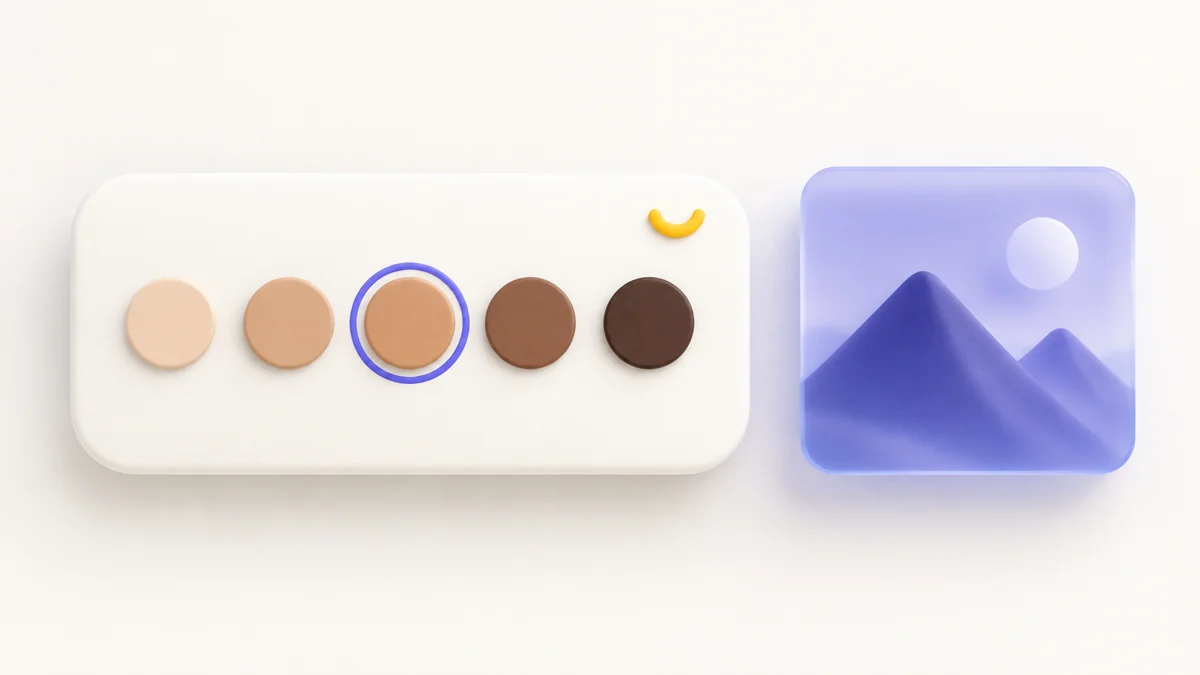
Set the default on desktop
- Click the smiley-face icon in the message field to open Slack's emoji menu.
- Click the hand icon in the bottom-right corner of the menu.
- Choose your preferred default skin tone.
Then select a built-in hand or person emoji that supports skin-tone variants and check it in the message field before sending. Not every emoji has a variant, so a face or object is not a useful test.
Set the default on iOS or Android
Slack documents the same route for both mobile apps:
- Tap your profile picture at the top of the screen.
- Tap Preferences.
- Under Appearance, tap Default Emoji Skin Tone (capitalization may differ).
- Choose your preferred skin tone.
On iOS, distinguish Slack's setting from the phone keyboard. Slack says the keyboard's emoji or globe button gives you iOS emoji; typing an emoji code in the Slack message field gives you Slack emoji. If an emoji inserted through your keyboard has a different tone, check the keyboard's choice rather than repeatedly changing Slack's default.
Choose a different tone for one emoji
You do not need to change your default for every message. Slack says you can click certain emoji after they appear in the desktop message field to cycle through their available skin tones. Check the selected variant before you send it.
For emoji depicting multiple people, Slack's desktop picker also supports right-clicking to customize skin tones. Use that control when a single default does not describe the combination you want. These options apply to supported built-in emoji, not every item in the picker.
Why a custom emoji does not change
A built-in emoji can be a Unicode character sequence with a skin-tone modifier. Unicode's modifier chart lists the supported combinations. An uploaded custom emoji is instead a JPG, PNG, or GIF file that someone named and added to the workspace.
Changing a Unicode preference does not redraw the pixels in that file. A custom image of a hand, face, or character keeps the colors in the uploaded image. If your team needs another version, edit a source image you have permission to use and upload it separately with a clear name. Do not rename the existing file and expect its colors to change.
For that separate workflow, use the Slack custom emoji upload guide and the naming guide. If you are choosing a new image rather than changing a built-in variant, start with the Slack emoji discovery guide.
A different drawing is not always a different setting
Slack says it displays Apple's emoji style on Mac and iOS, and Google's style on Windows, Linux, and Android. The outline, shading, and exact colors can therefore look different across devices. Use the selected variant, not a pixel-for-pixel match to someone else's screenshot, to check your choice.
If you are troubleshooting, work in this order: confirm it is a supported built-in emoji, confirm you are using Slack's picker or code rather than the iOS keyboard, then check the default or individual selection. If only an uploaded custom image stays unchanged, that is the expected boundary of this setting.
Sources
Checked October 1, 2026. The steps and platform differences below are documented by Slack; the file-versus-Unicode explanation is based on Slack's upload formats and Unicode's modifier sequences.