
How to Use a Custom Emoji as Your Slack Status
Your Slack status emoji shows next to your name almost everywhere people see it. That makes it one of the most-seen emojis in the workspace. Here is how to set one with a custom emoji, which designs work at that size, and how admins can put good ones in everyone's suggestions.

Miles Crawford
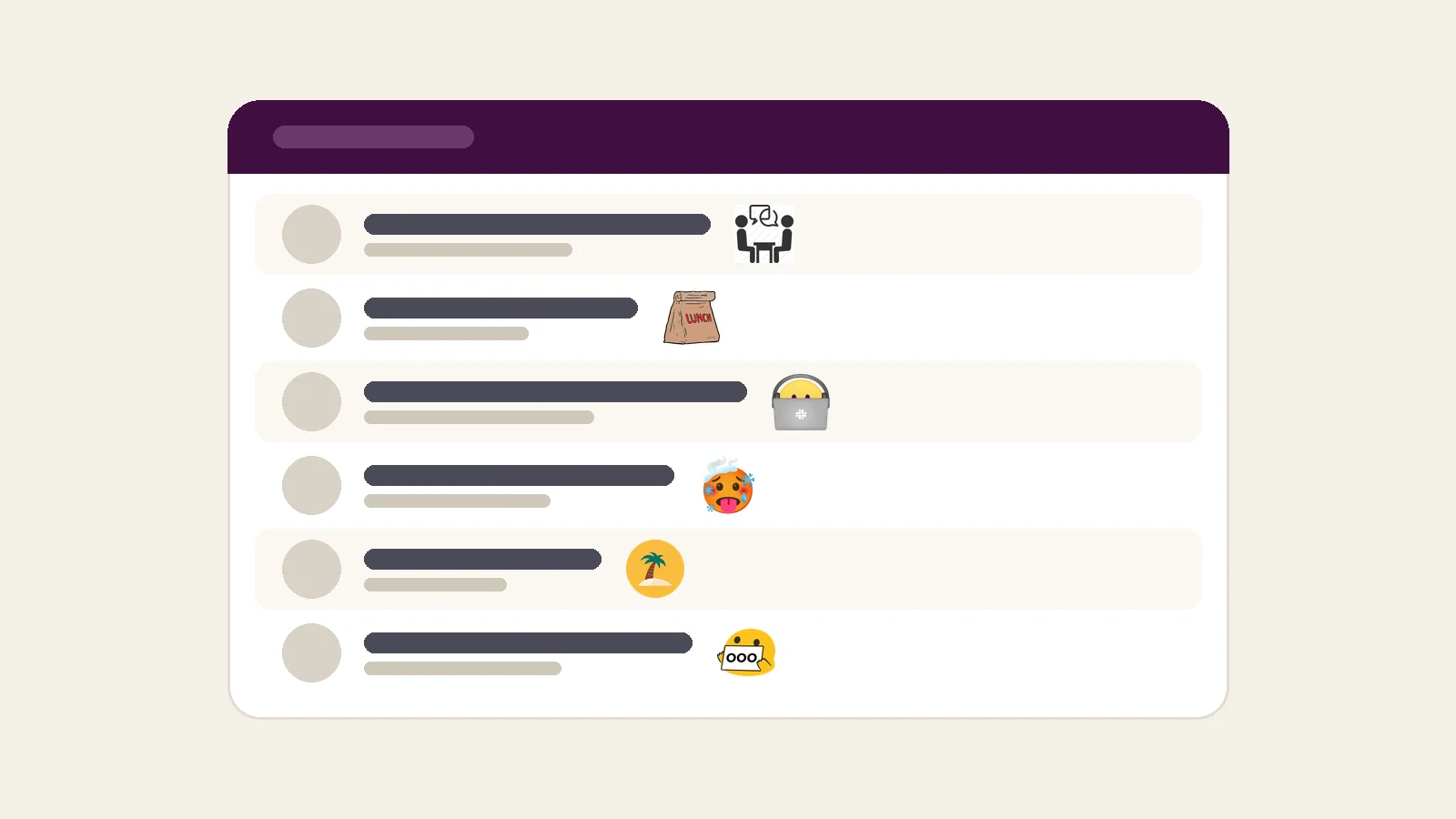
Why the Status Emoji Matters
Slack shows your status emoji next to your name anywhere people can see your full or display name. On desktop, people can hover over it to read the full status. So the emoji often does the work before anyone reads the text.
Slack's developer docs say a status emoji can be any emoji installed on the workspace, which includes custom ones. If the emoji you want isn't there yet, add it to Slack first.
Set Your Status on Desktop
- Click your profile picture in the sidebar.
- Click Update your status.
- Type a status and pick an emoji. Search by the emoji's name to find a custom one quickly.
- Click Remove status after... to choose when it clears. You can also check Pause notifications until then.
- Click Save.
To change or remove it later, click your profile picture, then click your current status to edit it or Clear status to remove it.
Set Your Status on Mobile
Tap your profile picture, then the status field. Type a status, tap the emoji icon to pick an emoji, tap Clear after to choose when it ends, and tap Done.
Pick an Emoji That Reads at Name Size
A status emoji is shown next to your name at text size, smaller than a reaction chip. Some designs hold up at that size and some turn into a smudge.
- One clear shape. A lunch bag or a palm tree reads at a glance. A detailed meme frame doesn't.
- Strong outline and contrast. It needs to show up in both light and dark themes.
- Don't count on animation. Slack's developer docs say animated emoji appear frozen when used as a status emoji, so check that the first frame makes sense alone.
If a custom emoji looks muddy even at reaction size, the blurry emoji guide covers how to fix it.
A Starter Set of Status Emojis
These are real emojis from the Teamsmoji library that read well at small sizes. Each one covers a common reason people set a status at work.
 :meeting:meetingIn a meeting: two people at a table is easy to read, even at name size.
 :lunch:lunchOut to lunch: the paper bag shape is clear before anyone reads the text.
 :heads_down:heads downHeads down: use it with a time, like 'heads down until 3', so people know when to expect a reply.
 :cold_fever_sick:cold fever sickOut sick: one simple face that reads as unwell without any text.
 :beach:beachVacation: the palm tree on a plain circle stays readable in light and dark themes.
 :blob_out_of_office:blob out of officeOut of office: pair it with a return date in the status text.
Want more options? The reaction finder and the Slack emoji finding guide help you search by meaning.
Keep the Text Short
Status text can be up to 100 characters, per Slack's developer docs, and it can include :emoji: codes. It doesn't support formatting or mentions. Slack encourages keeping it short. A time or date is usually the most useful part: "Back at 2" or "Out until Oct 6".
Depending on your workspace settings, your status may also be visible to people from other organizations in channels shared externally. Write it as if a client might read it.
Schedule a Status Ahead of Time
For planned time away, you can schedule a status so it turns on and off by itself:
- Click your profile picture, then Update your status.
- Type a status and pick an emoji.
- From the Duration menu, choose Choose a start and end time.
- Set the start and end dates, then click Save.
You can have up to five scheduled statuses at a time. To change one before it starts, open your profile picture menu and click it under Scheduled.
Slack can also set automatic statuses when you're in a huddle, in focus mode, or outside your working hours. Turn them on or off in Preferences under Automatic statuses.
For Workspace Admins: Custom Status Suggestions
Workspace Owners and Admins can change the suggested statuses everyone sees, and Slack says custom emojis work for these suggestions. On Free, Pro, and Business+ plans, click Admin in the sidebar, hover over Edit workspace, select Statuses, pick your suggestions, and click Save. Enterprise plans use Tools & settings, then Customize, then the Statuses tab.
Slack's own tips: pick an emoji that shows the status clearly, keep the text short, avoid acronyms not everyone knows, and choose time frames that don't clear too soon. Adding your team's own emojis here is an easy way to get people using them. Getting your team to use custom emojis has more ideas.