
Report a Suspicious Message in Slack or Teams Without Spreading It
Do not forward a suspicious message to a busy channel just to ask whether it is safe. Pause the requested action, use your organization's known reporting route, and keep the evidence with the people who need to review it. Slack's admin flagging and Teams' reporting controls have different availability and disclosure rules.

Miles Crawford
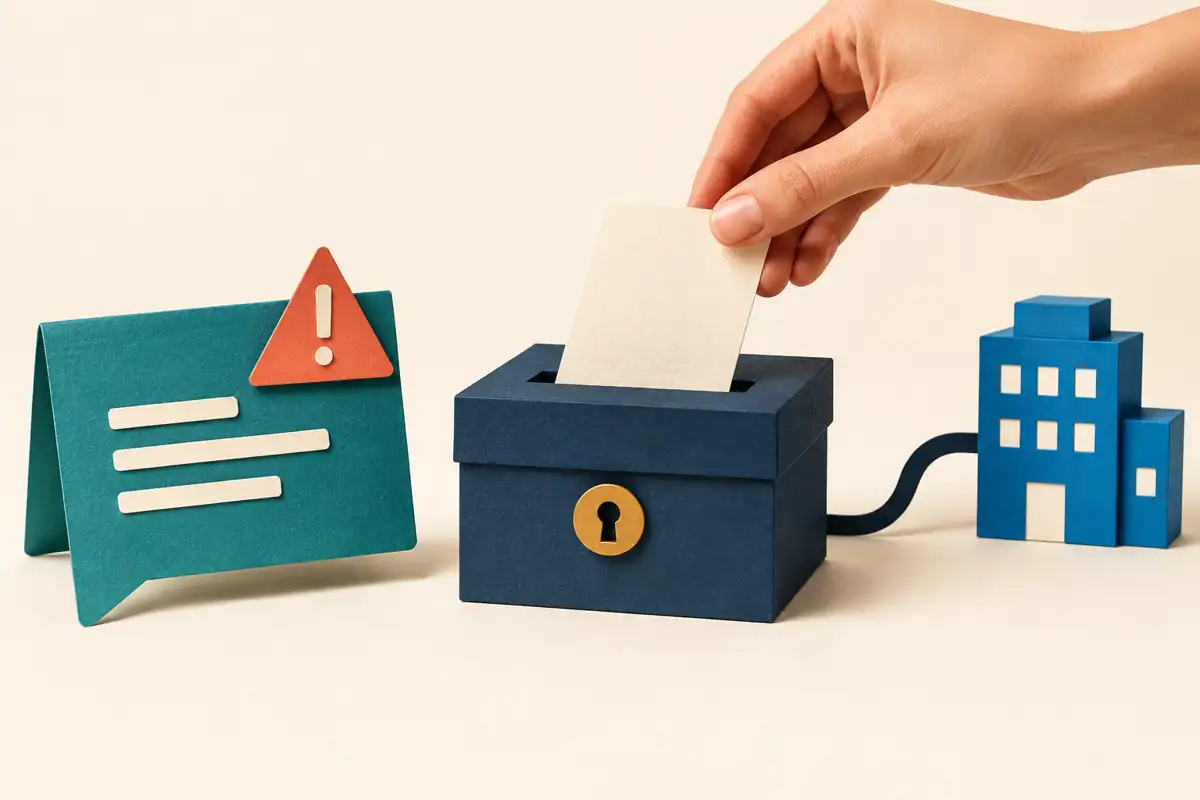
Pause the request, not just the link
CISA's phishing guidance says not to open suspicious links or attachments, reply, or use contact details supplied in the message to verify the sender. If the request might be real, reach the person through a separate, already-known route. Good grammar, a familiar display name and an urgent deadline do not settle who sent it.
In a work chat, stop the requested payment, sign-in, file transfer or code-sharing step while you check. Do not download an attachment merely to collect evidence. If you already interacted with the message, tell your security team what happened promptly through the established incident route; reporting a message is not a substitute for incident help.
Before you submit
- Stop
- Pause the action the message asks you to take. Do not open its links to investigate.
- Route
- Use the known security process or the available native reporting control. Check who receives it.
- Describe
- State what you observed and what you did. Separate suspicion from a confirmed finding.
- Confirm
- Look for submission confirmation. Follow the incident route if you already interacted.
Slack: flag content to your organization's admins
Slack's Flag content feature is available on Enterprise plans to members except guests, and your admins must enable it. On desktop, hover over the message, open the three dots, choose Flag content, enter a reason and select Submit, then confirm with Submit. On mobile, tap and hold the message, choose Flag This Message, enter the reason and submit, including the final confirmation.
Slack says a notification confirms the submission. Designated Content Admins receive your name, the flagged content and your reason. If they do not have access to the source conversation, they see the flagged message itself rather than gaining access to the whole conversation. Slack says this admin-flagging feature does not send the flagged content to Slack for review.
This is not an anonymous report. Do not promise a coworker that nobody will know who flagged something. The reviewer sees the reporter's identity, and an organization can enable author notifications when content is removed. Flagging also does not mean that content has already been removed.
Slack: Report to Slack is a different route
Slack's separate Report Slack workspace content page describes reporting prohibited or illegal workspace content to Slack or raising it with the Workspace Primary Owner. Where the in-app option is available, open the message's three-dot menu, choose Report to Slack, complete the issue form and select Submit Report. Availability varies by country or region.
Do not confuse this with Enterprise Flag content, or assume it is your company's phishing-response queue. Use the reporting destination your organization has established for security concerns. Slack's documentation also says that action on a direct report can lead to a notice to the content author. Read the reporting information before assuming a particular audience or confidentiality outcome.
Teams: report the specific message
Microsoft's user-facing instructions are to open More options on the chat or channel message, choose Report this message, select the appropriate reason if offered, then select Report. A confirmation says the report was sent. Reasons can include Security concern for spam, phishing or malicious content, and Inappropriate for other concerning content.
Your organization may hide the report option or omit the reason selector. Microsoft says to ask your admin whether reporting is enabled. Its security documentation also distinguishes reporting a message from reporting an external user while blocking them. One is not proof that the other happened.
Not a security concern is a correction route for messages with URL warnings that were incorrectly flagged, not the right reason for a new suspicious message. Microsoft's support page also says reporting is not available inside the Copilot app in Teams. Do not search a different app surface and conclude that all Teams reporting is unavailable.
Check the report's audience and limits
Microsoft's Teams user-reported settings documentation says administrators choose whether reported items go to Microsoft, a reporting mailbox, or both. It warns that a submission may include contextual messages, up to fifteen before and after the reported message, for analysis. A report is therefore a disclosure through a configured workflow, not a private note to yourself.
That documentation lists desktop, web and supported mobile clients, but organizational configuration and service availability still matter. Microsoft's pages describe licensing differently: its Teams security article names Defender for Office 365 Plan 2 or Defender XDR, while its Defender reporting page names Plan 1 or Plan 2 or Defender XDR. We cannot settle a specific tenant's entitlement from those pages. Ask the administrator rather than buying a plan or promising the button will appear.
Send facts to the right reviewer
Our suggested internal report separates the observed request from your conclusion. Include where it appeared, the displayed sender and available account identifier, the time, the requested action, whether you interacted, and a message reference if your approved process accepts one. Do not put passwords, verification codes or a fresh copy of sensitive documents in the report.
Fictional example: 'At 10:15 in the project chat, an account displaying Sam asked me to enter a verification code through an unfamiliar link. I have not opened the link or sent a code. The original message is still in the chat. Please review through the security queue.' This describes evidence without claiming that Sam authored it or that an attack has been confirmed.
Use the native confirmation as evidence of submission only. It does not establish a verdict, removal, a blocked sender or an immediate response. If the button is missing, use the known security/help-desk route and mention that limitation. Follow your organization's evidence and deletion instructions rather than erasing the original or reposting it widely to get attention.