
Link Previews in Slack and Teams: Hide Cards Without Losing the Context
You paste a useful link, then a large card pushes your actual request out of view. Before changing settings for everyone, separate three jobs: removing one card, changing what you see, and changing an organization's messaging policy. Slack and Teams do not put those controls in the same place.

Miles Crawford
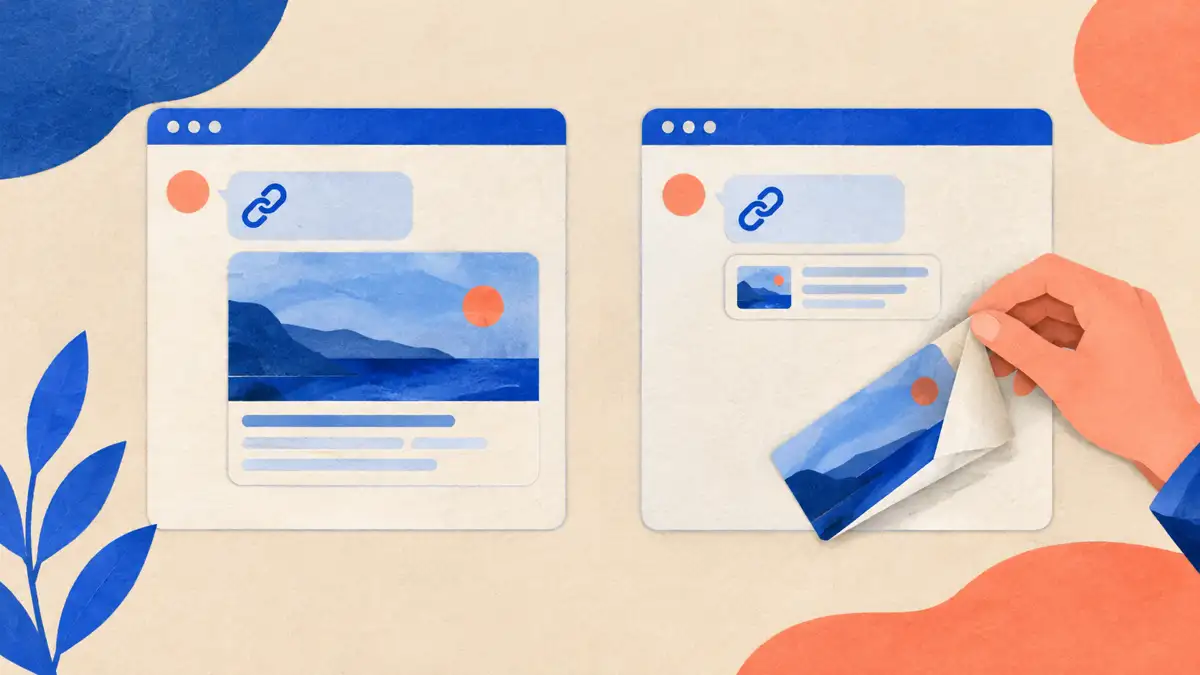
Remove one Slack preview
Slack's documented desktop method is to hover over the link preview and click the x on its left side. On mobile, long press the link in the message and tap Remove Link Preview. This is the small intervention when one card adds clutter; it is different from changing your preview preferences.
Our suggestion: keep a preview when the image or page title answers a real question. Remove it when your own sentence already explains the destination, especially in a compact handoff with several links. A card is supporting context, not a substitute for saying what someone should do.
Change Slack's preview preferences
On desktop, click your profile picture, select Preferences, then Messages & media. Under Inline media & links, uncheck Show images and files from linked websites and Show text previews of linked websites. Slack describes these as preferences for what you see, so do not treat them as a promise that coworkers will see a link-only message too. Slack also warns that some third-party app previews remain enabled despite those boxes.
Why a Slack link may have no preview
A missing card does not by itself mean the link is broken. Slack lists missing preview metadata, a private page or file, a link already posted in the same conversation within the past hour, and unsupported audio or video services among the causes. Messages containing more than five links do not expand them. Slack also recommends checking that the URL includes its protocol.
Our troubleshooting order: open the destination yourself, check whether the intended reader has access, then inspect whether a card would actually help. If you maintain the destination website, Slack points web administrators to its URL debugging tool for checking the metadata it retrieves. Do not repeatedly repost a working link just to force a thumbnail.
Teams at work: a messaging-policy control
Microsoft's Teams administrator documentation lists URL previews as a messaging-policy setting that turns automatic URL previewing on or off. It also says Optional Connected Experiences must be enabled for previews to be allowed. This is an organizational control, not the same personal preference screen Slack documents.
If your work account behaves differently from a coworker's, ask your Teams administrator to check the policy assigned to you before assuming the feature is broken. We cannot confirm a universal personal switch for work-account URL cards from the official pages checked for this guide. Do not use instructions for Teams Free as if they applied to every managed work account.
Teams Free: optional connected experiences
Microsoft's separate Teams Free page applies to personal accounts. Its desktop instructions put the Optional Connected Experiences toggle under Settings, then Privacy, and link it to both GIPHY and URL Preview. That is a wider change than hiding one card: consider the GIF behavior you may change too.
The same page's mobile steps instead list Messaging options for GIFs and YouTube video previews. Those are not identical controls, so we are not claiming the desktop URL-preview switch exists under the same mobile label. Microsoft also explains that its URL-preview service can request the destination while you type and may use Bing to retrieve preview data. Treat a sensitive URL as information, even before the final message is sent.
Write the useful part above the link
Our suggested pattern is one sentence with the requested action, a descriptive link, then a deadline only when it is real: "Please check the launch checklist before the planning meeting; the two open questions are at the top." An emoji such as a check mark can mark the kind of update, but should not carry the only instruction.
Neither a readable card nor an emoji proves that the recipient can open the destination. Check the audience separately. In particular, Microsoft's specific-message link documentation says people outside the original group chat cannot access that chat message. A preview is presentation; access is a different question.
Sources
Checked October 26, 2026. Product behavior and steps come from these official pages; writing and troubleshooting recommendations are ours.