
Why Your 128x128 Emoji Looks Too Small: A Measured Margin Test
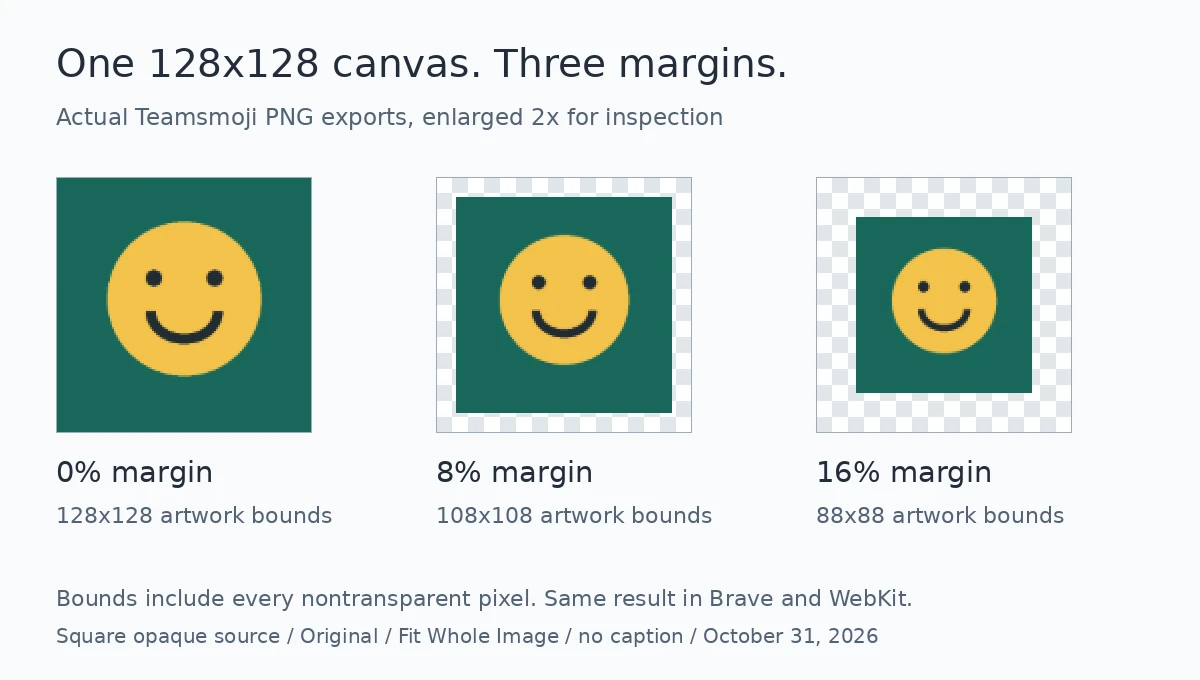
A 128x128 file can still contain a small image. The file dimensions describe the canvas, not how much of that canvas the artwork uses. In our live maker test, changing only the margin reduced a square image from 128 pixels across to 108 or 88, while every exported PNG remained 128x128.

Miles Crawford
Check the canvas, then the artwork
If the file already has the expected square dimensions, exporting a larger canvas is not the first fix. Open the image against a checkerboard and inspect the empty border around the subject. Transparent pixels still occupy space in the file; they do not make the subject larger.
There can be two layers of empty space: transparent borders already saved in your source and the margin added by the maker. A source whose subject is tiny inside a large transparent square stays small even when you set the maker margin to zero. Crop the source carefully first, without cutting off meaningful edges.
What we actually exported
On October 31, 2026, we uploaded our own 400x400 opaque square test image to the live Teamsmoji Emoji Maker. We used the Teams target, Original style, Fit Whole Image, no caption and no white background. We changed only Margin around the image, then downloaded the PNG at 0%, 8% and 16%.
We repeated all three downloads in desktop Brave and mobile-sized WebKit. For each decoded PNG, we measured the smallest rectangle containing every pixel whose alpha was greater than zero. Both browsers produced the same canvas dimensions and nontransparent bounds. This is an export measurement, not a test inside Teams or a claim about every browser.
Same canvas, different artwork bounds
| Margin | Canvas | Artwork bounds |
|---|---|---|
| 0% | 128x128 | 128x128 |
| 8% | 128x128 | 108x108 |
| 16% | 128x128 | 88x88 |
Bounds include every nontransparent pixel, including partially transparent edge pixels. They do not measure the face alone.
Read the numbers correctly
Margin is applied on each side, not shared across the pair. For a square source in this setup, the intended inner side is 128 multiplied by (1 minus twice the margin fraction). At 8%, that is 107.52 pixels; the decoded nontransparent bounds occupied 108 pixels. At 16%, the intended side is 87.04 pixels and the measured bounds occupied 88.
Do not treat those rounded bounds as a promise for your own artwork. Antialiased edges, an irregular silhouette, existing transparent borders, crop choices, captions and animated styles can change the bounding rectangle. Our opaque square deliberately makes the margin easy to isolate.
Fix it in a useful order
First, inspect the source. If it contains a wide transparent border, make a tighter crop in your image editor or use Crop by hand in the maker, then check that the crop has not removed part of the subject. Next, choose Fit Whole Image to keep the source shape, or Fill the Square only if a center crop is acceptable. Those are different framing choices, not higher and lower quality settings.
Then lower Margin around the image and compare the preview at chat size. Try 0% for an already well-cropped square, then add only the breathing room it needs. A face, a badge with an outer stroke and a moving object may need different spacing. Check every edge, not only the center.
Finally, download the result and reopen that actual file. Confirm its dimensions, inspect its transparency and look at it at a small display size. The large editing preview can hide a thin line or unreadable caption. If you intend to upload it to a workplace chat, test it there too; we did not measure the chat client's rendering in this experiment.
What margin cannot fix
An opaque white or colored border is part of the source image. Reducing transparent margin will not erase it. Likewise, the White Background control fills transparency with white; it is not a background-removal tool. Changing PNG to JPG is not a way to preserve transparency.
Small lettering and delicate details are a separate problem. MDN's canvas image tutorial explains that scaling can make images fuzzy or grainy, especially text. Removing spare space can give the subject more room, but it cannot recover detail that was never in the source. Use a simpler crop or a shorter caption rather than repeatedly resizing the same export.
Why we did not choose a winner by file size
The decoded geometry matched, but the file bytes did not: our 8% PNG was 5,727 bytes in Brave and 2,377 in WebKit. These are two files from this test, not expected sizes for other images. Byte count alone did not tell us how large the artwork would look, and this experiment does not establish which browser compresses images better.
The practical check is narrower: confirm the export format and dimensions, reduce wasted space when appropriate, then judge the actual downloaded image at its intended small size. If the artwork already fills the canvas and still reads poorly, simplify the design instead of chasing a bigger dimension number.