
Start a Slack Workflow With an Emoji Reaction
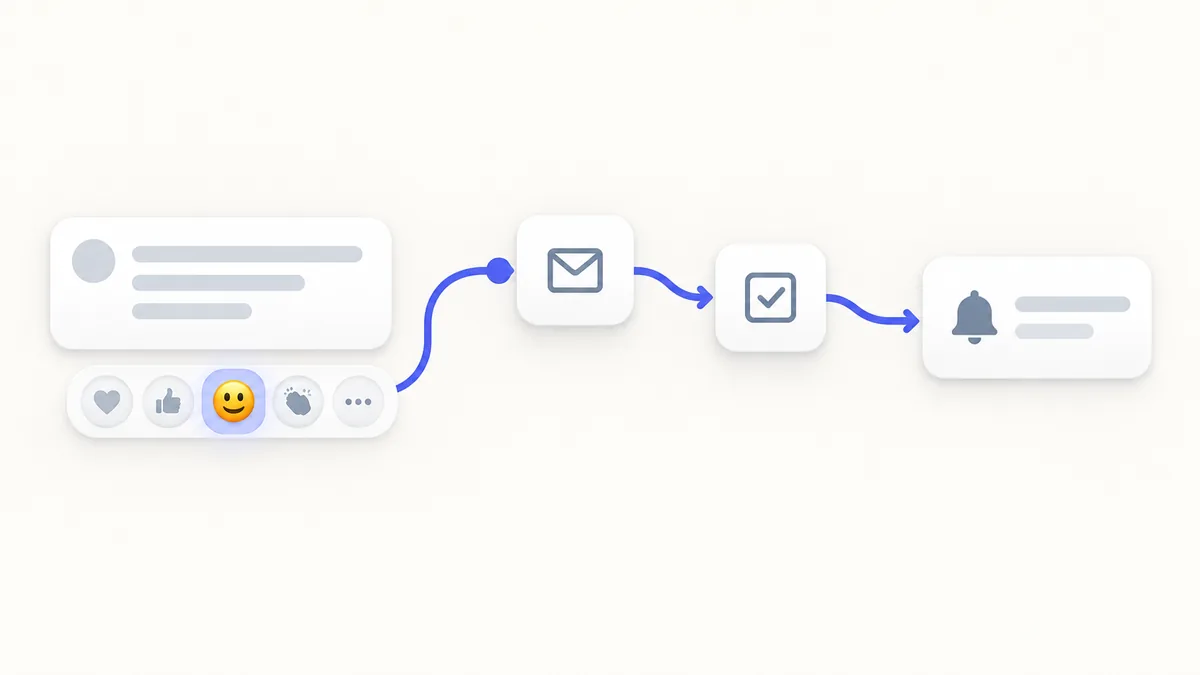
Slack can start a workflow when someone reacts to a message with an emoji you choose. That makes a reaction useful for more than saying thanks: it can send a request form, post a follow-up, or hand a task to the right person. Here is how to set it up, and how to choose an emoji that will not fire by accident.

Miles Crawford
What you need first
Workflow Builder is available on paid Slack plans, and by default anyone on a paid plan can create workflows. If you do not see the option, your workspace owners or admins may have restricted who can build them. To make a step post in a channel, you also need permission to post in that channel.
Build the workflow
- On desktop, click Agents & tools in the sidebar. If you see a Tools tab instead, use that, and look under More if you do not see either.
- Under Workflows, click New in the top right, then choose Build Workflow.
- Below Start the workflow, click Choose an event and select When an emoji reaction is used.
- Pick the emoji and the channel, then click Continue. When someone uses that reaction in that channel, the workflow starts.
- Add the steps you want. A Slack step can send a message or add someone to a channel. A connector step can act in a third-party service, such as adding a row to a Google spreadsheet.
- Click the workflow icon in the top-left corner to give it a clear name and an optional description.
- Click Finish Up, review the details and permissions, then click Publish.
You can edit a workflow after it is published, including who manages it and who can find and use it.
Use the person who reacted in your steps
While you set up a step, you can insert variables that carry information from earlier in the workflow. For example, a Send a message step can use the Person who used this workflow variable to reach whoever added the reaction. Add a button to a step if you want the workflow to wait until someone clicks it before moving on.
What a reaction trigger is good for
Slack's own examples show the idea. One Slack example has a request marked complete with a checkmark reaction, and that reaction can start a second workflow that sends a confirmation to the original thread. Another example sends a form to anyone who reacts with a chosen emoji on a post asking for feedback.
Other places it fits: a reaction on a bug report that opens a ticket form, a reaction on a customer question that pings the support channel, or a reaction on a kudos post that sends a thank-you note to the person named. Those are our suggestions rather than Slack templates, so test each one in a private channel first.
Choose a trigger emoji people will not use by accident
The workflow starts whenever someone uses that emoji in that channel, so the emoji decides how often it runs. Our advice:
- Skip everyday reactions such as thumbs up. People will fire the workflow while just saying okay.
- Pick one emoji for one job, and say what it does in the channel description or a pinned message.
- A custom emoji can make a good trigger because nobody uses it casually. Give it a plain name that says what it does. Our naming tips cover how, and the Slack upload guide covers adding it.
- Limit it to the channel where the process lives rather than the whole workspace.
Slack's help article says to specify an emoji and a channel. It does not say whether a custom emoji can be chosen there, so check the emoji picker in your own workspace before you plan around one.
If the option is missing
No When an emoji reaction is used choice usually means the workspace is not on a paid plan or an owner or admin has limited workflow creation. Ask them to enable it for you, or ask them to build the workflow. If you are working out which reactions your team should rely on first, our one-click reactions guide is a good start.
Sources
Checked October 13, 2026. The steps follow Slack's current help article; the examples come from Slack's own Workflow Builder posts.