
Choose Your Microphone and Speaker in Slack and Teams Before a Call
You can hear the call through your headphones while your laptop microphone is still picking up the room. Or your microphone can work while voices go to a monitor you cannot hear. Treat input and output as two separate choices. Here is how to check both in Slack huddles and Microsoft Teams without asking a whole meeting to troubleshoot with you.

Miles Crawford
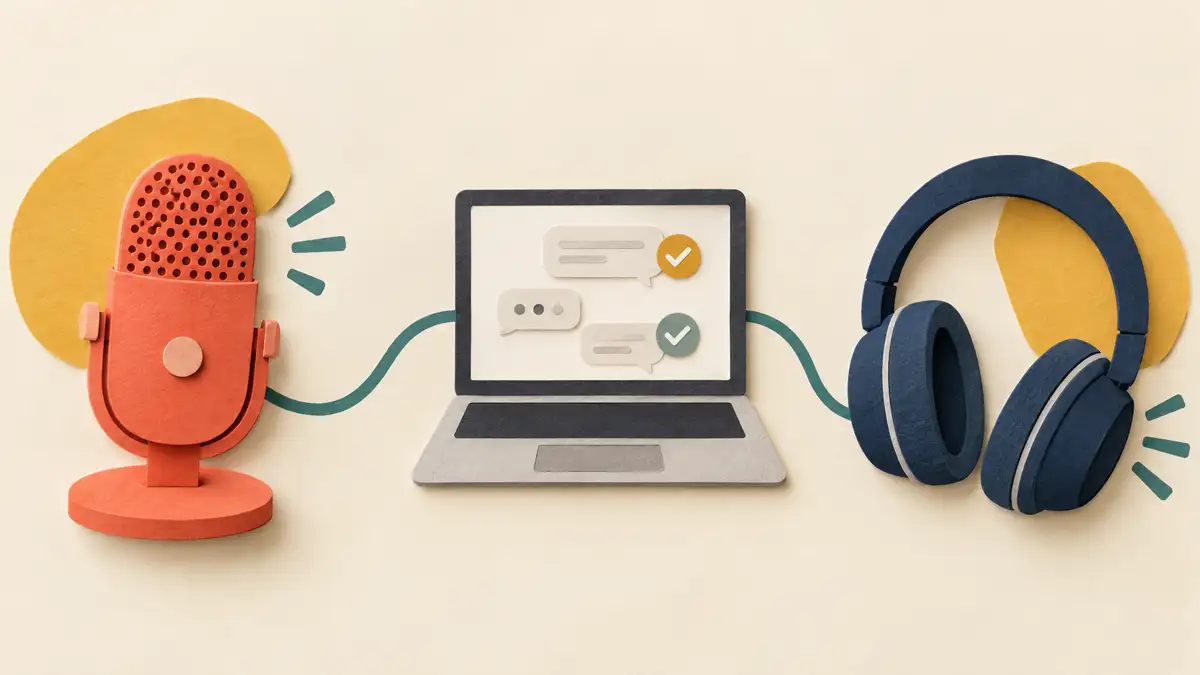
Slack desktop: choose input and output separately
Click your profile picture in the sidebar, select Preferences, then Audio & video. Under Microphone, open the dropdown and choose the microphone you intend to use. Speak a few words and watch the input level move. Under Speaker, choose the output device you want to hear.
Slack's troubleshooting guide says to click Test for the speaker: you should hear a chime when the selected speaker is unmuted and working. If the microphone meter does not move, try another entry in the microphone dropdown. A device name alone is not a test. Check that your voice reaches the input and the test sound reaches your ears.
Already in a huddle? Slack documents a speaker check from the three dots menu: select Test Speaker. Our suggestion is to do the full input-and-output check before the conversation, especially after moving desks or changing headsets.
Slack's troubleshooting test has a browser limit
For a broader diagnostic, open Preferences, Audio & video, then select Run test under Troubleshooting. Slack says its audio, video and screen sharing test is available in the Slack desktop app and Slack in Chrome. Do not assume every browser exposes that diagnostic.
If audio still fails, Slack recommends quitting and reopening the app or browser, then restarting the device if needed. Also check microphone permission at the operating-system and browser levels. A selected microphone cannot help if Slack is blocked from accessing it. Permission menus vary by operating system; follow the instructions for the version you actually use.
Teams desktop: select devices, then make a test call
In Teams for work or school, open Settings and more, Settings, then Devices. Under Audio settings, select the speaker and microphone you want Teams to use by default. Microsoft's meeting-audio guide places the dropdowns under Audio, Audio settings and also documents Manage devices for connecting or disconnecting audio devices.
Select Make a test call to check the setup. Follow Test Call Bot's instructions and record a short message. It plays back, then you receive a test summary. Microsoft says the recording is deleted immediately after the call and is not retained or used by Microsoft.
The test call is documented for the Teams desktop app on Windows and Mac, not Teams for web. Microsoft's speaker troubleshooting page also says the feature is currently English-only. If you cannot find it in a browser, that is a documented limit, not a reason to keep searching the same menus.
Check the meeting's audio source too
On the Teams desktop pre-join screen, choose Computer audio if you want the computer's speaker and microphone. Select Audio settings there to check the setup before joining. Phone audio and Room audio use different audio sources; they are not alternative names for your headset.
During a meeting, open the dropdown arrow beside Mic and use More audio settings for advanced controls, as described in Microsoft's meeting-audio guide. Changes made during the meeting take effect immediately. Microsoft notes that some settings may be unavailable because of meeting-organizer or IT-admin policies.
Our suggestion: if you must change a device mid-conversation, first post a short message such as "Switching microphones, one moment." A reaction can acknowledge that message, but it should not replace a clear explanation of why you have gone quiet.
A missing device needs a connection check
Microsoft recommends checking that a Bluetooth audio device is charged, or unplugging and reconnecting a wired device, when it does not appear. For Bluetooth speaker trouble during a meeting, it also says to check that the speaker is not connected to another device, then reconnect it.
Our troubleshooting order is simple: confirm the device is connected, select it in the app, test it, then investigate permissions or system audio if the test fails. Changing noise suppression is a separate task from selecting the right input. Do not keep changing several settings at once; you will lose track of what fixed the problem.
Teams on a phone uses different controls
Microsoft documents tapping Speaker on the mobile pre-join screen, choosing the speaker, then joining. During a meeting, tap Speaker in the meeting controls and select the speaker you want. Audio off turns off both your microphone and speaker.
These are mobile meeting controls, not the desktop Devices settings page. The desktop test-call instructions above should not be treated as a phone workflow. If someone still cannot hear you, use meeting chat to explain the issue while you check the audio, rather than repeatedly speaking into an untested microphone.
Sources
Checked October 27, 2026. Menu paths and feature limits come from official help. The troubleshooting order and communication examples are our suggestions.